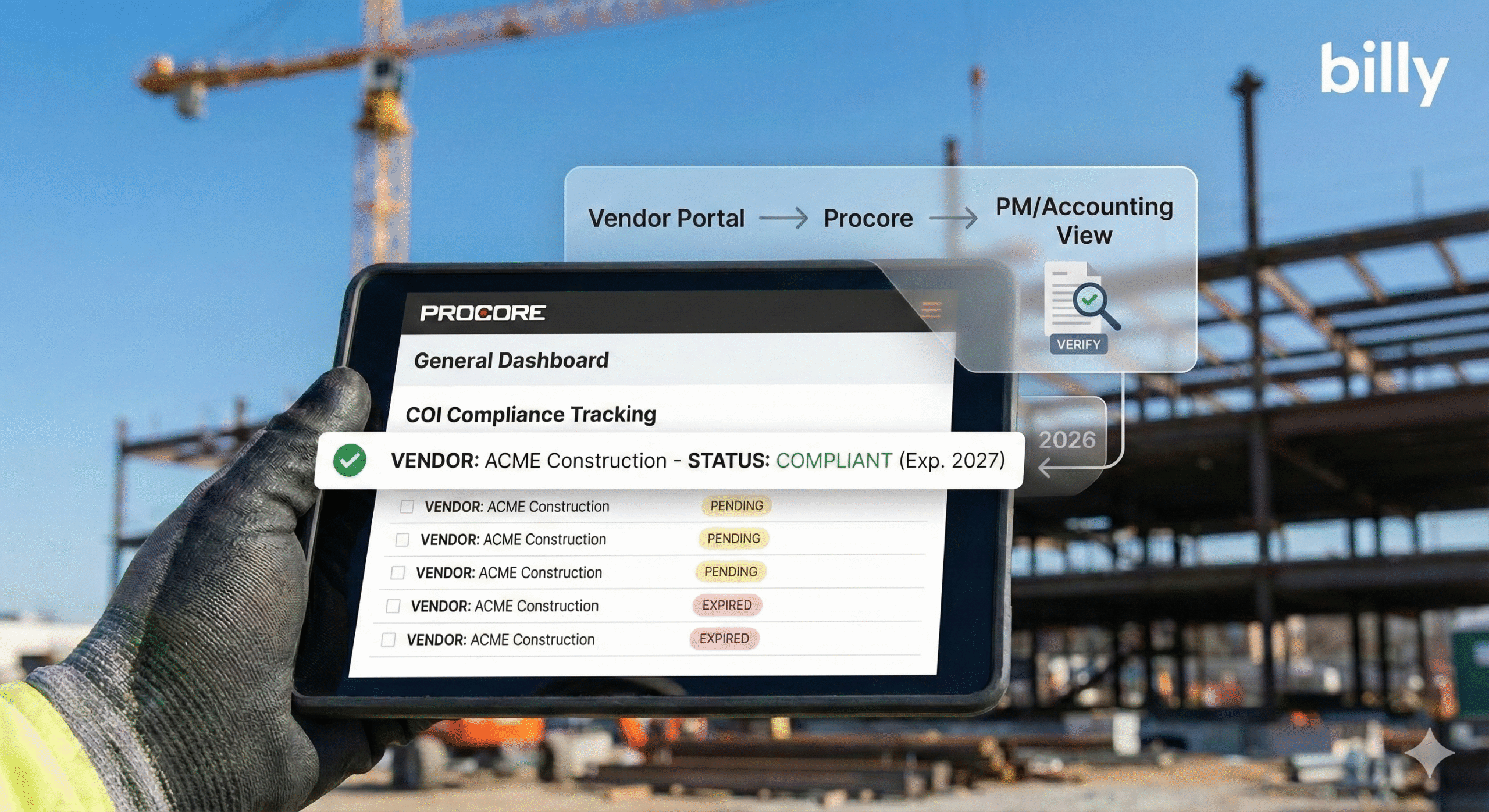
If you’re a general contractor using Procore, COI tracking usually breaks for one simple reason: Procore is where project management happens, but COIs often live somewhere else, email threads, shared drives, spreadsheets, or a separate compliance inbox.
This guide shows general contractors how to track COIs in Procore with a simple workflow for intake, validation, expirations, and audit trails, so compliance is visible where decisions are made (commitments + vendor records) and defensible when disputes happen.
When COIs are scattered, the result is predictable:
- PMs don’t see compliance issues until it’s a payment problem
- Accounting gets stuck chasing documents
- Risk doesn’t have a clean audit trail
- Subs slip through with expired or incomplete coverage
The fix isn’t “more folders.” The fix is a repeatable process that makes COI status easy to find, hard to ignore, and simple to prove later. Below is a practical, battle-tested workflow for GCs using Procore.
Why COI Tracking Breaks in Procore
Most teams run into one (or more) of these failure modes:
- No single source of truth: COIs are scattered across inboxes, drives, and project folders
- No consistent validation: limits and endorsements aren’t checked the same way every time
- No linkage to Procore workflows: documents aren’t tied to the vendor + project/commitment
- Expirations are reactive: teams find out during payment or closeout
- No audit trail: “who approved this and when?” becomes a mess
If you fix those, COI tracking stops being painful.
Decide Your “Source of Truth” (This Matters More Than People Think)
You have two workable models:
Model A: Procore is the system of record for compliance
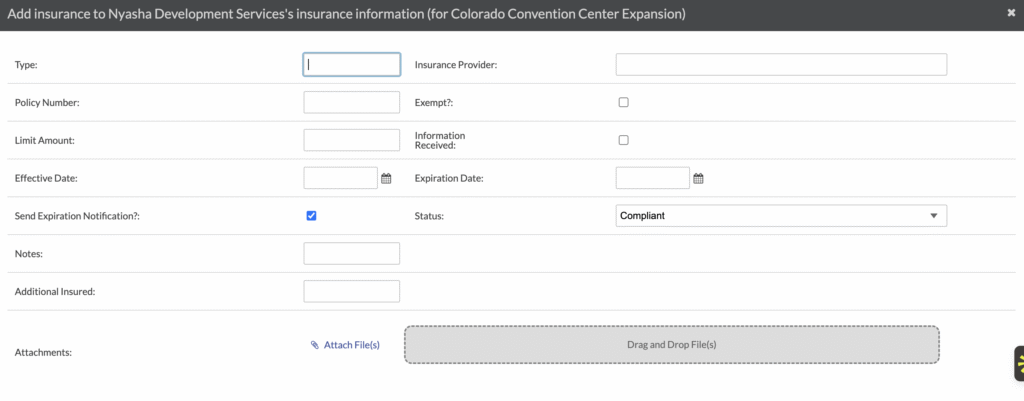
This works only if you have strict processes and dedicated admins to enforce consistency.
Model B: A compliance system is the system of record, with visibility inside Procore
This is what most GCs end up needing as they scale, because it keeps validation, reminders, and audit trails consistent while still giving PMs visibility in Procore.
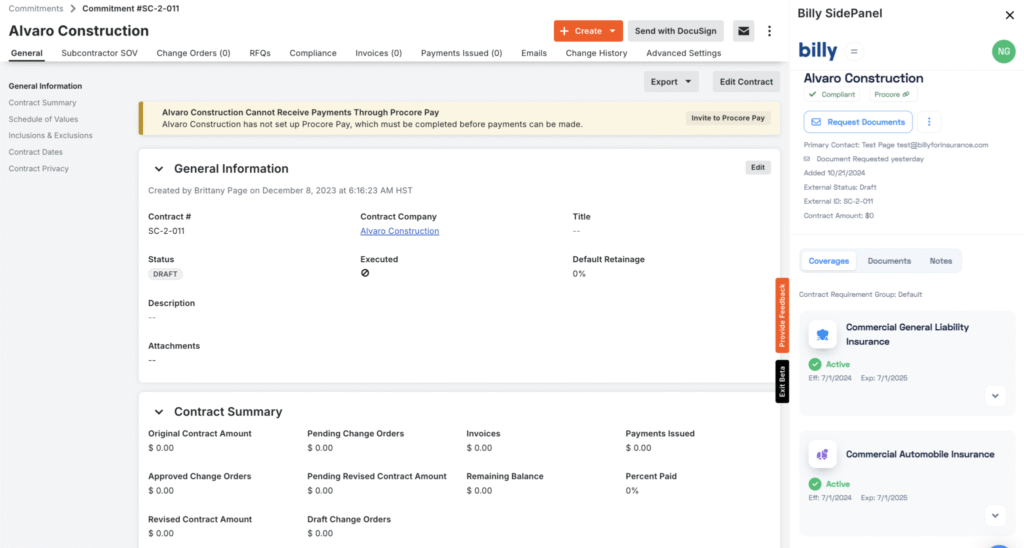
Operational rule: whatever your system of record is, Procore should show the compliance status where PMs and accounting actually work vendor records and commitments.
The 6-Step COI Workflow for General Contractors
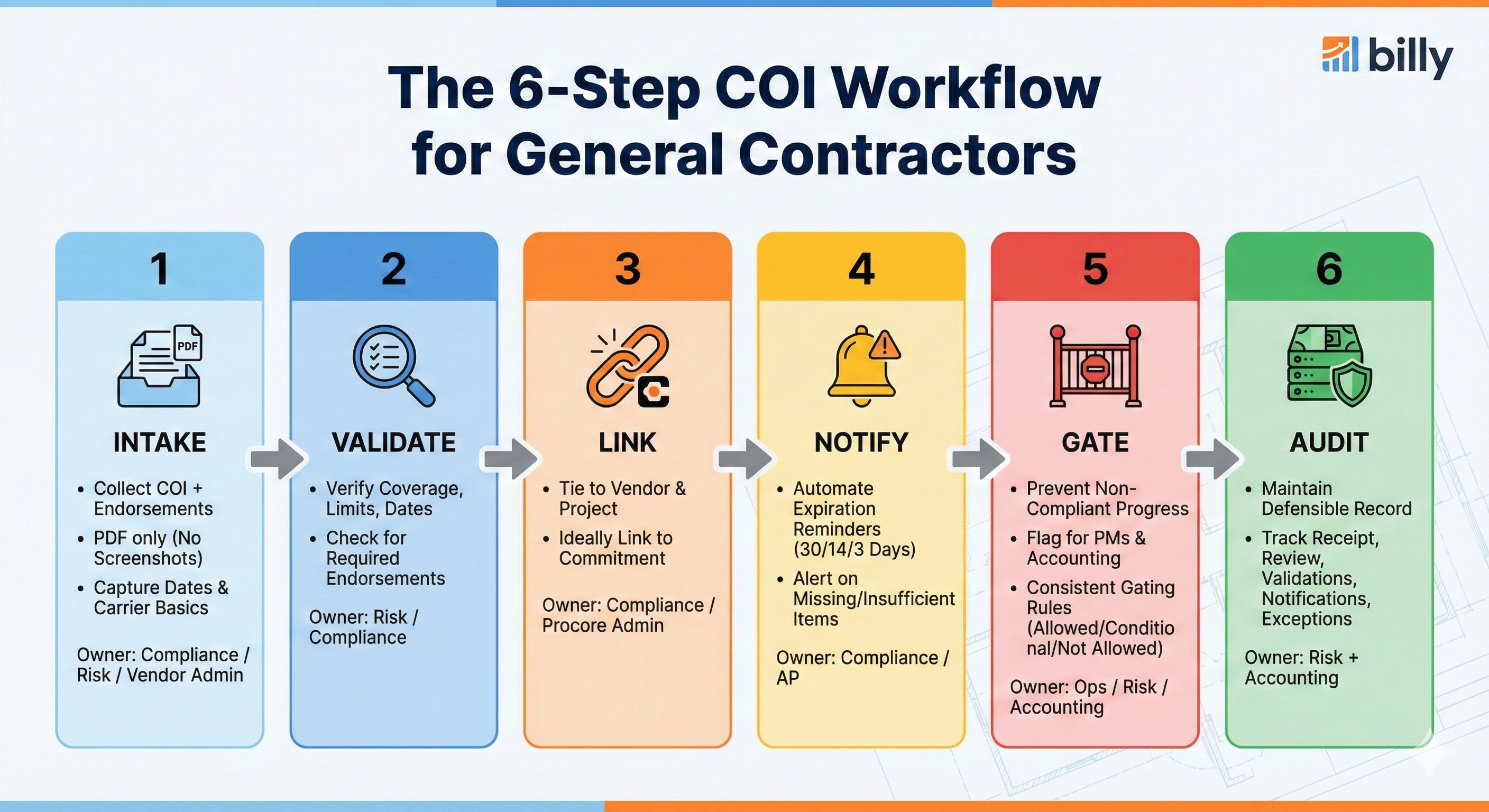
Step 1: Intake: Collect the COI + required endorsements
Owner: Compliance / Risk / Vendor Admin
- Require COI in PDF (not screenshots)
- Require endorsements as separate PDFs when needed (don’t accept “it’s on the COI” unless it truly is)
- Capture effective date, expiration date, and carrier basics
Goal: You want a complete intake package, not “a COI that might be okay.”
Step 2: Validate: Verify coverage requirements (not just that a COI exists)
Owner: Risk / Compliance
At minimum, validate:
- Coverage types required (GL, Auto, WC, Umbrella as needed)
- Limits meet your requirements
- Policy dates are current
- Your required endorsements are present (when applicable)
Key point: A COI is evidence of insurance, not a guarantee that requirements are met. Your process should reflect that.
Step 3: Link: Tie the COI to the vendor AND the project/commitment
Owner: Compliance / Procore Admin
This is where most teams fail: they “have the COI,” but it’s not tied to the workflow.
- Link to the vendor
- Link to the project
- Ideally link to the commitment (so it’s visible during pay and contract workflows)
Operational rule: If it isn’t linked to the vendor + project, it will get lost at exactly the wrong time.
Step 4: Notify: Automate expirations and missing items
Owner: Compliance / AP
Set a standard reminder cadence so you stop chasing:
- 30 days before expiration (vendor + internal owner)
- 14 days before expiration (vendor + PM)
- 3 days before expiration (vendor + AP/Accounting + risk escalation)
Also notify when:
- Endorsement is missing
- Limits are insufficient
- Certificate holder/additional insured details are incorrect (if you require them)
Goal: Make compliance drift impossible to ignore.
Step 5: Gate: Prevent non-compliant vendors from progressing
Owner: Ops / Risk / Accounting
This is the moment where compliance becomes operational:
- Non-compliant vendors should be flagged clearly
- PMs should see it before work ramps
- Accounting should see it before payment
You don’t need drama. You need consistent gating rules:
- Allowed (compliant)
- Conditional (temporary exception + expiration date)
- Not allowed (expired/missing/insufficient)
Step 6: Audit: Keep a defensible record of what happened
Owner: Risk + Accounting
When something goes wrong, you need to answer quickly:
- When was the COI received?
- Who reviewed it?
- What was verified?
- When did it expire?
- What reminders went out?
- What exceptions were granted (and by whom)?
Minimum audit trail fields to track:
- receipt date/time
- reviewer name
- validation result (pass/fail + reason)
- linked vendor + project (+ commitment if possible)
- expiration date
- notifications sent (dates)
- exception approvals (if any)
This is what protects you during disputes, audits, and closeout.
Where COI Status Should Show Up for PMs in Procore
If your PMs have to leave Procore to understand compliance, they won’t check until it’s a problem.
COI status should be visible:
- on the vendor record (so they know if the company is generally compliant)
- in commitments (so compliance is visible in contract + pay workflows)
- ideally on a simple “Compliance” panel/status indicator that’s impossible to miss
The closer compliance is to day-to-day work, the less chasing you do.
Expirations: The Only Reminders You Need
If you do nothing else, implement this:
- 30 days: vendor reminder + internal owner
- 14 days: vendor reminder + PM visibility
- 3 days: escalation to AP/accounting + risk flag
This eliminates the “we found out at payment time” trap.
Common Mistakes GCs Make (and the quick fixes)
- Mistake: Storing COIs in Procore folders with no linkage
Fix: Link by vendor + project/commitment, not just folders. - Mistake: “We have a COI” = “We’re compliant”
Fix: Validate limits + required endorsements consistently. - Mistake: Expiration reminders are ad-hoc
Fix: Standardize 30/14/3 reminders. - Mistake: No audit trail
Fix: Track receipt, review, status, and actions taken.
Where Billy Fits (Procore-First COI Visibility + Workflow)
If you want COI tracking to feel effortless, Billy is built for exactly this GC workflow:
- centralize COIs and endorsements
- validate requirements consistently
- automate reminders for missing/expiring documents
- link documents to the correct vendor + project
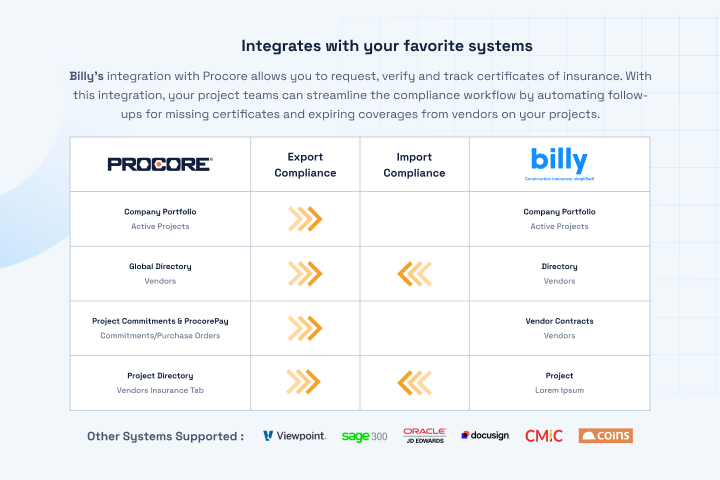
- surface compliance status inside Procore where PMs and accounting work
- keep a defensible audit trail
This turns COI tracking from “paperwork chasing” into operational control.
FAQ: COI Tracking in Procore
How do general contractors track COIs in Procore?
A practical approach is to collect COIs and endorsements, validate requirements consistently, link documents to the vendor and to the project/commitment, automate expiration reminders, and make compliance status visible to PMs and accounting in Procore.
Where should COIs live if you use Procore?
COIs should live in a single system of record with clear linkage to vendor and project, while compliance status should be visible in Procore (vendor records and commitments) so teams don’t have to hunt for documents.
What should a GC verify on a certificate of insurance?
At minimum: coverage types, limits, active policy dates, and any required endorsements. A COI alone doesn’t confirm compliance; validation does.
How do you handle expired COIs without chasing subs?
Use automated reminders (30/14/7 days), escalate before expiration, and gate progress/payment when vendors are non-compliant.
What audit trail should a GC keep for COI compliance?
Receipt date, reviewer, validation results, linked vendor + project, expiration date, notifications sent, and any exception approvals, so the record is defensible for audits and disputes.
See the COI Workflow Inside Procore
If you’re tired of chasing COIs in email and spreadsheets, you don’t need more admin work; you need a system.
Book a walkthrough: https://billyforinsurance.com/request-demo/