The single biggest driver of compliance delays isn’t missing insurance — it’s a slow, unclear request process that leaves subs and brokers guessing what you need. Here’s exactly how to request a COI, what to include in the request, and how to automate the whole thing so you never have to send that email again.
Most COI request problems aren’t caused by subcontractors who don’t want to comply — they’re caused by GCs who send vague requests that subs and brokers can’t act on efficiently. “Please send your certificate of insurance” is an incomplete request. What insurance? With what limits? Naming whom as Additional Insured? With which endorsements?
A complete, specific request is the fastest path to a compliant certificate on the first submission.
What to Include in Every COI Request
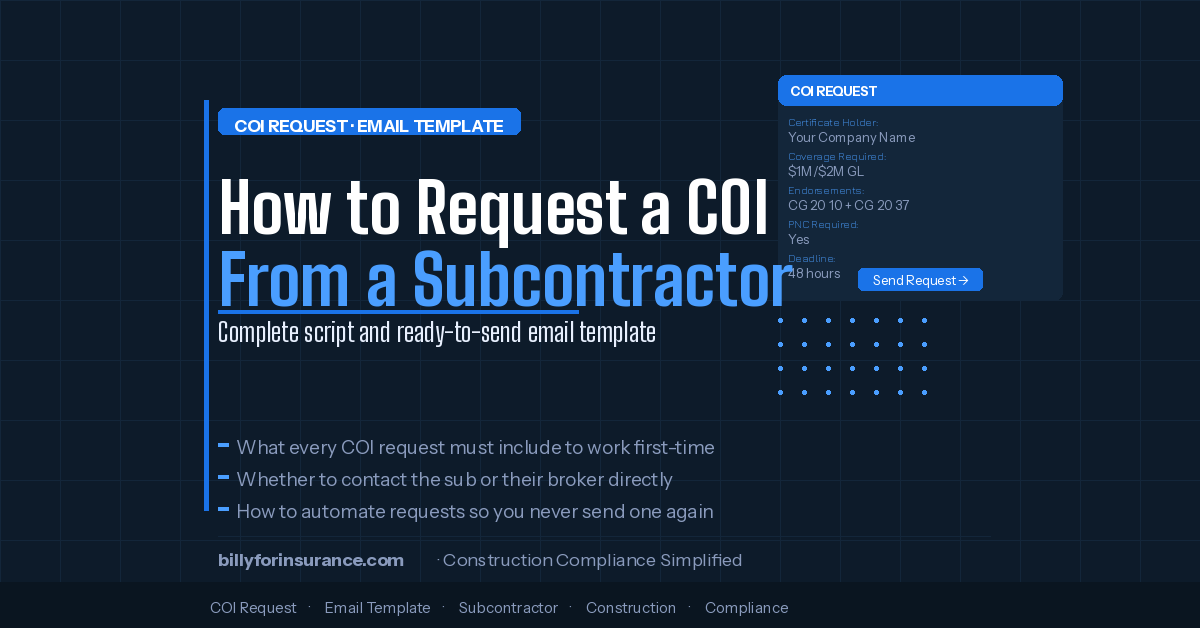
A complete COI request gives the sub’s broker everything they need to issue an accurate certificate on the first pass. That means:
- Your company’s exact legal name as it should appear on the Additional Insured endorsement — not your DBA, not a shorthand name. The entity that needs AI status.
- Certificate Holder information — Your company name and mailing address (this is who receives the certificate)
- Coverage types required — GL, Workers Compensation, Commercial Auto, Umbrella/Excess — be explicit about each
- Minimum limits per coverage type — e.g., GL $1M/$2M, WC statutory, Auto $1M CSL, Umbrella $5M
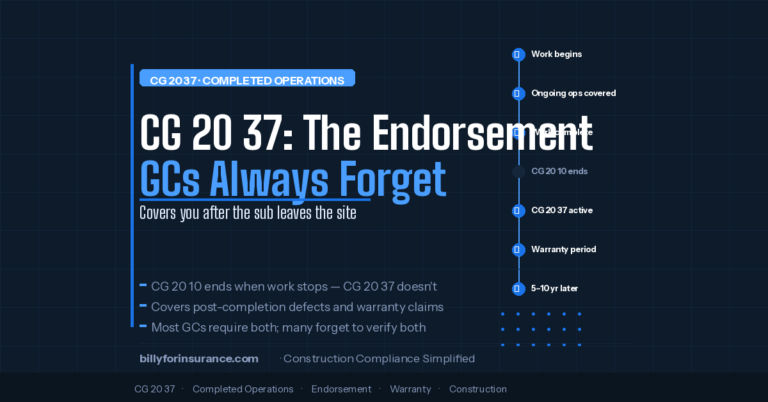
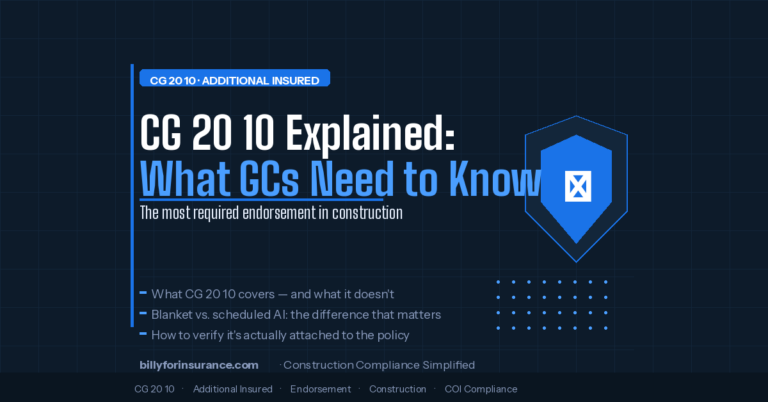
- Required endorsements — Specifically: Additional Insured via CG 20 10 (ongoing operations), Additional Insured via CG 20 37 (completed operations), Primary and Non-Contributory, and Waiver of Subrogation
- Project name and number — So the broker can issue a project-specific certificate if required
- Deadline — Be specific: “by end of business Tuesday” not “as soon as possible”
- Where to send it — Email address, upload portal link, or Billy submission link
Ready-to-Use COI Request Email Template
COI Request Email Template
Subject: Certificate of Insurance Required — [Project Name] / [Your Company Name]
Hi [Sub Contact Name],
We need a current Certificate of Insurance on file before work can begin on [Project Name] ([Project Number]). Please forward this request to your insurance broker so they can issue the certificate with the following specifications.
Certificate Holder:
[Your Legal Company Name]
[Your Address]
[City, State, ZIP]
Additional Insured:
[Your Legal Company Name] must be named as Additional Insured on your Commercial General Liability policy via endorsement forms CG 20 10 (ongoing operations) and CG 20 37 (completed operations).
Required Coverage & Minimum Limits:
• Commercial General Liability: $1,000,000 per occurrence / $2,000,000 aggregate
• Workers’ Compensation: Statutory limits
• Employers’ Liability: $500,000 each accident
• Commercial Auto Liability: $1,000,000 combined single limit
• Umbrella / Excess Liability: $5,000,000 per occurrence and aggregate
Required Endorsements:
• Additional Insured — Ongoing Operations (CG 20 10 or equivalent)
• Additional Insured — Completed Operations (CG 20 37 or equivalent)
• Primary and Non-Contributory coverage
• Waiver of Subrogation in favor of [Your Company Name]
Deadline:
Please submit the certificate by [Date / Time] to [email or upload link].
If your broker has questions about our requirements, they can reach our compliance team at [compliance email or phone]. Thank you for your prompt attention to this request.
[Your Name]
[Your Title]
[Company Name]
Should You Send the Request to the Sub or Their Broker?
Send the request to the sub — but make it easy for them to forward to their broker. The sub is your contract party and the one ultimately responsible for compliance. The broker is the one who can actually issue the certificate.
Best practice: in your request, explicitly tell the sub to “forward this email to your insurance broker.” Include all the technical details (limits, endorsements, certificate holder language) that the broker needs to act on immediately without asking follow-up questions.
When Billy automates COI requests, it sends the request to the sub with a one-click upload link. The sub forwards to their broker. The broker uploads the certificate directly. No phone tag, no email thread, no login required.
How to Follow Up Without Burning the Relationship
The single most important thing about follow-up: do it fast. A request sent on Monday with a Friday deadline that you follow up on Thursday is already too late to course-correct if the broker has questions or the certificate has issues. Follow up within 48 hours of the initial request if no confirmation has been received.
- Day 1 (send) — Send the initial request with all required details and a clear deadline.
- Day 2–3 (confirm) — If no acknowledgment, send a brief follow-up: “Just confirming you received my COI request for [Project]. Please let me know if your broker needs anything to process this.”
- Day 4 (escalate if needed) — If still no response and the deadline is approaching, call the sub directly. Keep it professional: “I want to make sure we get this resolved before [deadline] so your crew can mobilize on time.”
- Day 5+ (hold if necessary) — If a certificate isn’t received by the deadline, enforce the policy: work cannot begin until compliance is confirmed. Document your requests and the sub’s non-response.
How to Stop Sending These Emails Entirely
The template above is a manual process. At 5 vendors, that’s fine. At 100 vendors across 15 projects, sending and tracking individual COI requests consumes hours per week and creates gaps every time someone is out of the office.
Billy automates the entire request workflow:
- New vendor added in Procore, Autodesk, or your ERP → Billy auto-sends a branded COI request
- The request includes your specific requirements (limits, endorsements, AI language) configured once
- Sub receives a branded email with a one-click upload link — no login, no portal
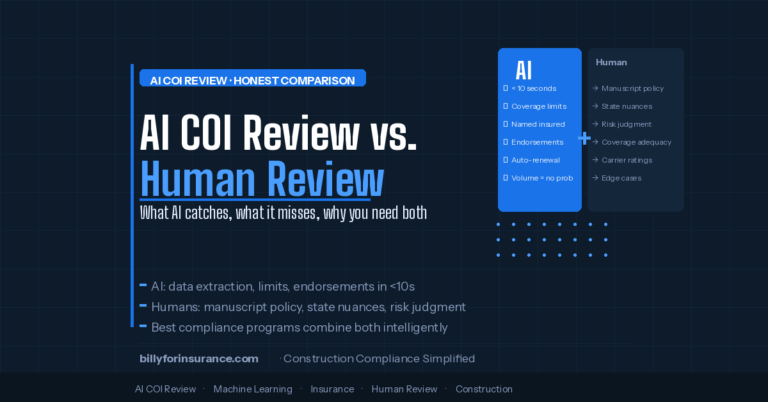
- Submitted COI is reviewed automatically by Billy’s AI Review Assistant
- Deficiencies trigger automatic follow-up with specific remediation guidance to the sub or broker
- Renewal outreach fires 30 days before expiration — same automated workflow, no manual trigger
Your compliance team stops sending emails and starts reviewing the dashboard. That’s the shift from reactive to proactive — and it’s what COI tracking at scale actually requires.
Stop Sending COI Request Emails Manually
Billy automates the full request workflow — from new vendor to compliant certificate — without your team sending a single email.
See How It Works →Frequently Asked Questions
What if the sub says they “already sent” their COI?
Confirm receipt in your system before responding. If you have the COI, check whether it meets your requirements — it may have been submitted without the required endorsements. If you don’t have it on file, politely ask them to re-send or provide the date and email address they sent it to so you can search your records.
Can I accept a COI directly from the subcontractor (not from their broker)?
You can — but the risk is that a sub-submitted COI could be altered or not represent actual coverage. Best practice is to receive COIs from the sub’s insurance broker or to use a platform like Billy where subs submit through a verified channel. AI review also helps catch fraudulent or altered COIs that manual review might miss.
How do I handle a COI that meets some requirements but not others?
Return it with specific, itemized deficiencies — not a general “this doesn’t work.” Tell the sub’s broker exactly what’s missing: “Your policy shows GL limits of $1M/$1M — we require $1M/$2M aggregate. Additionally, CG 20 37 completed operations endorsement is not attached.” The more specific you are, the fewer rounds of back-and-forth you’ll need. Billy’s AI Review Assistant generates these deficiency notices automatically.